No matching guides. Try another word or clear your search.
Getting started · Everyone
Sign in and verify your email
Use your account password and the newest emailed sign-in code.
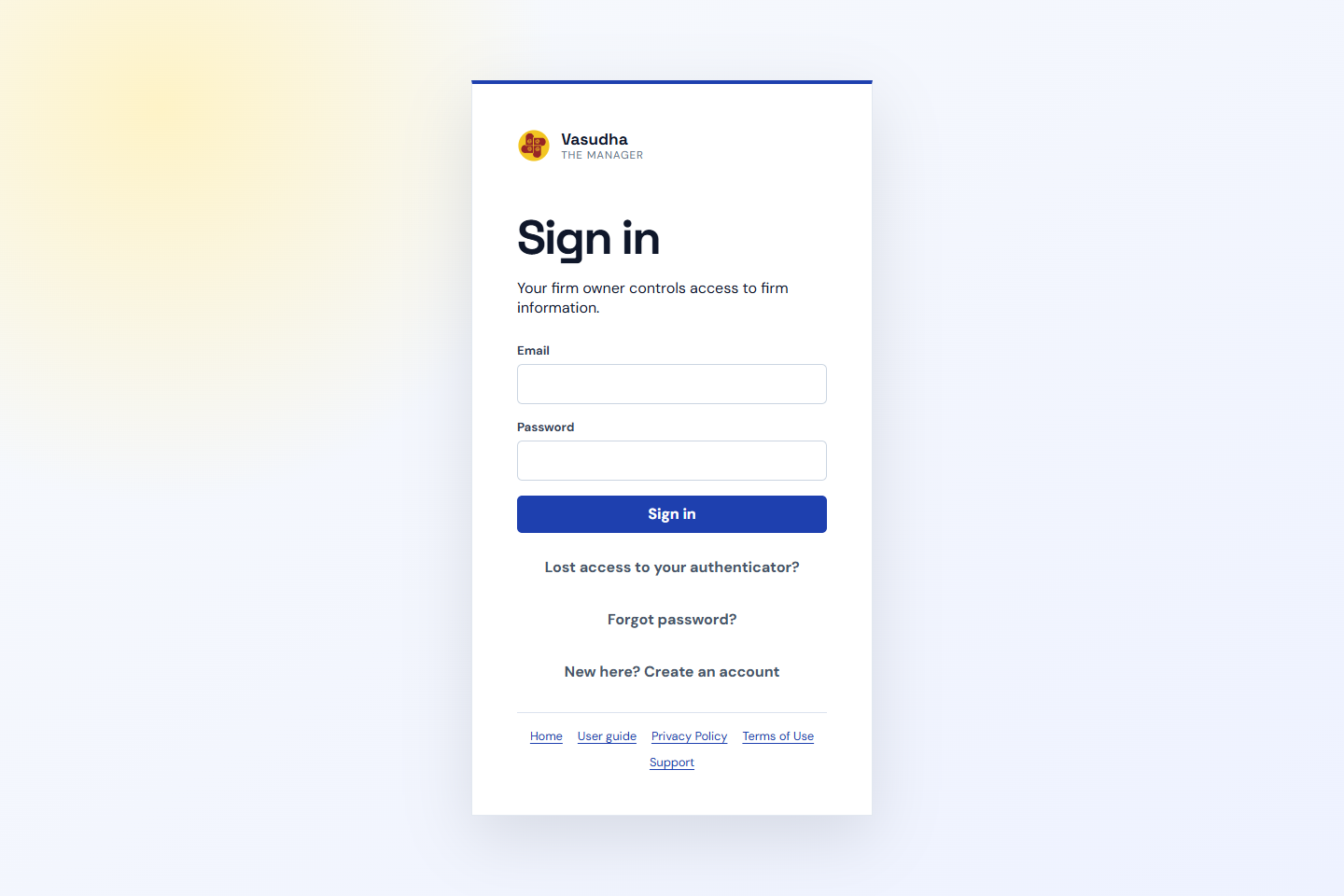 Sign in and verify your email · Fictional demo dataOpen full-size screenshot ↗
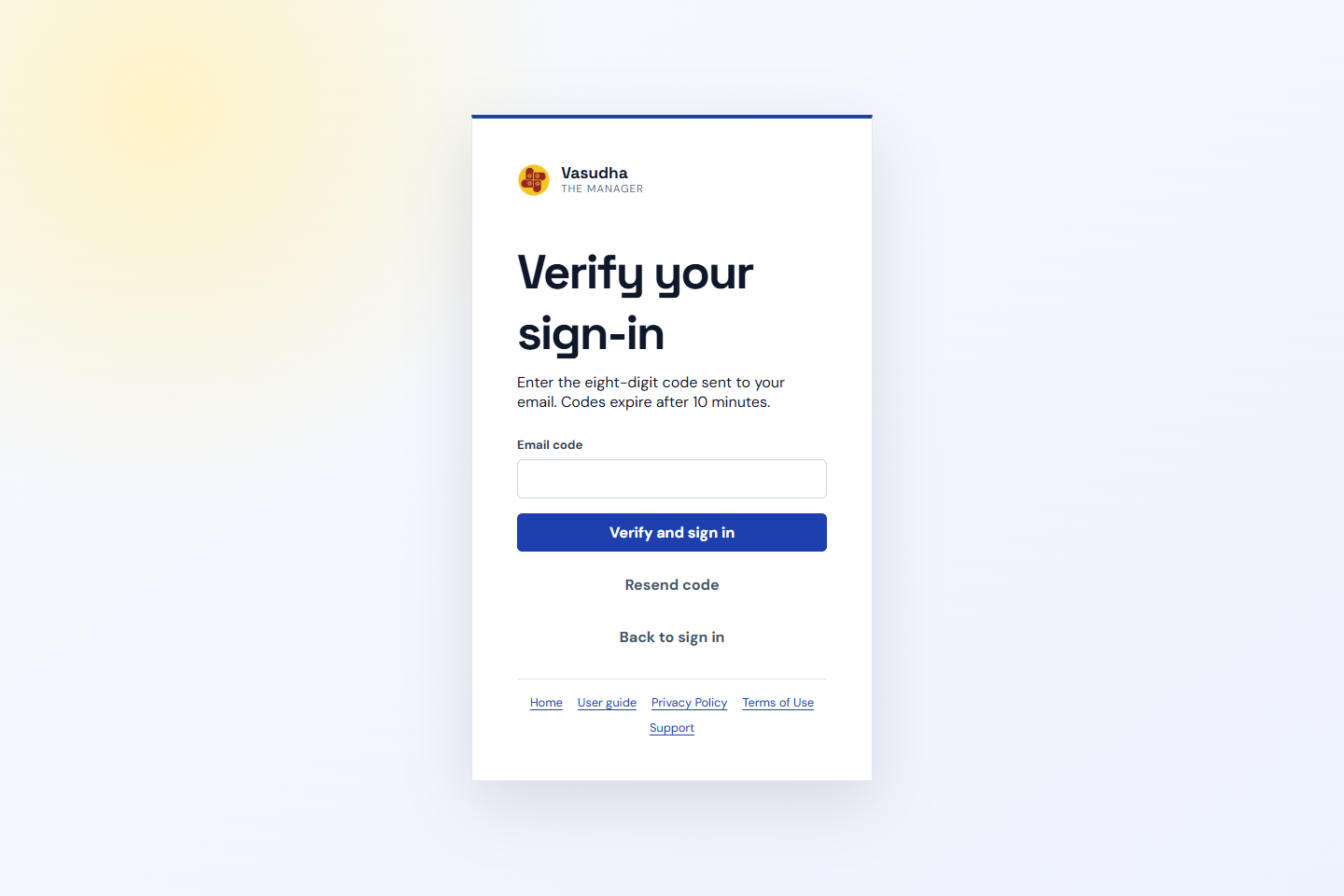 Email verification after password sign-in · Fictional demo dataOpen full-size screenshot ↗
- Open Login and enter your email and password.
- Enter the six-digit code sent to your email. It expires after five minutes. New accounts verify their email before signing in.
- If you enabled authenticator MFA, enter its six-digit code too.
- Choose a firm you have permission to access. Registration does not automatically grant firm access.
If email delivery fails, retry after service recovery. Never share your password, email code or authenticator setup secret.
Open the workspace →Getting started · Everyone
Recover password or authenticator access
The login screen offers separate password and lost-authenticator recovery flows.
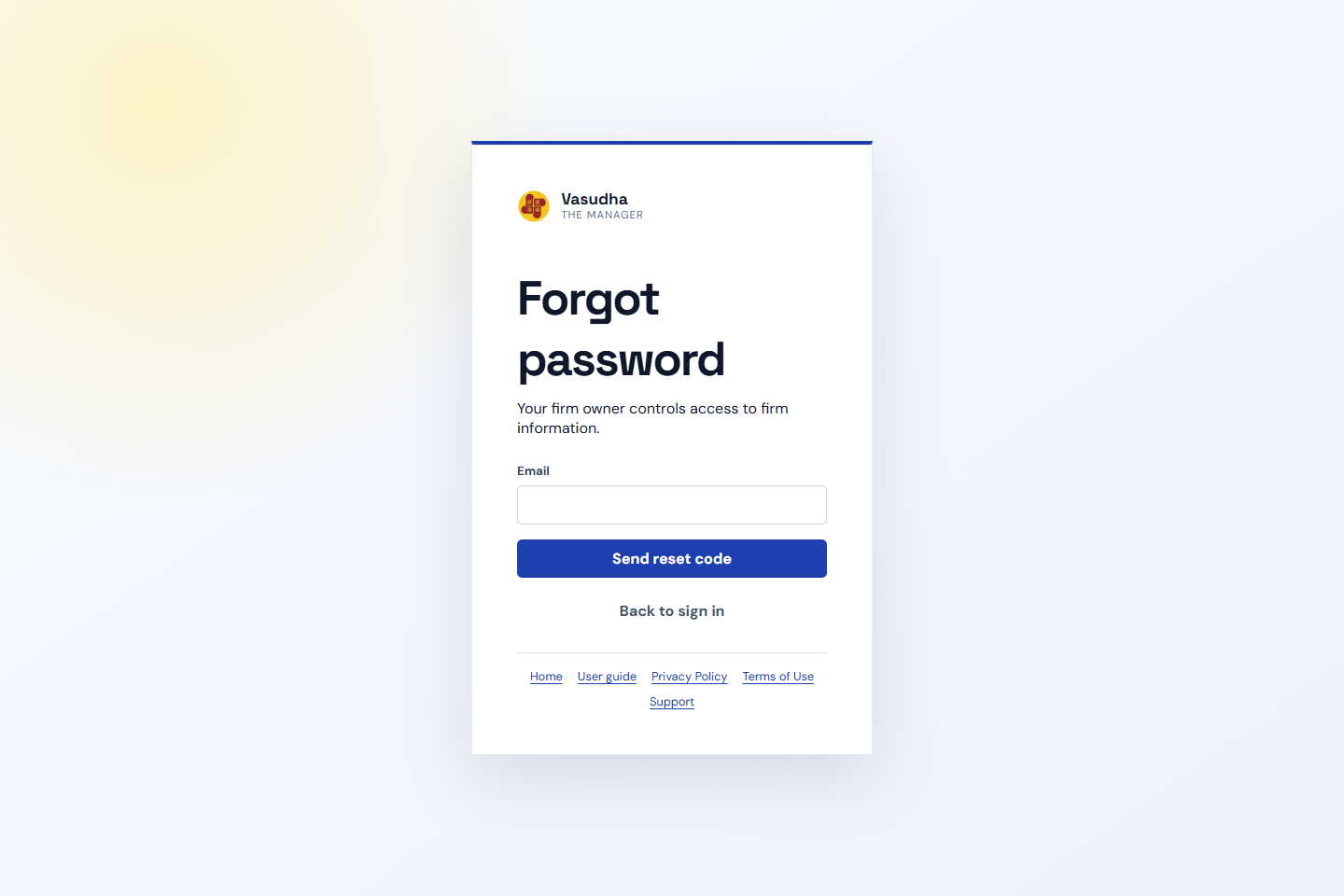 Recover password or authenticator access · Fictional demo dataOpen full-size screenshot ↗
- For a forgotten password, select Forgot password and enter the account email.
- Enter the reset code and a new password. The initial response does not reveal whether an account exists.
- For a lost authenticator entry, choose Lost access to your authenticator and verify the account password plus emailed recovery code.
- Authenticator recovery disables MFA and signs out the account’s sessions. Set up a new authenticator after signing in.
Deleting a secret in your authenticator app does not disable MFA in Vasudha.
Open the workspace →Getting started · Everyone with firm access
Choose a firm and read its dashboard
The selected firm determines the records and dashboard you are working with.
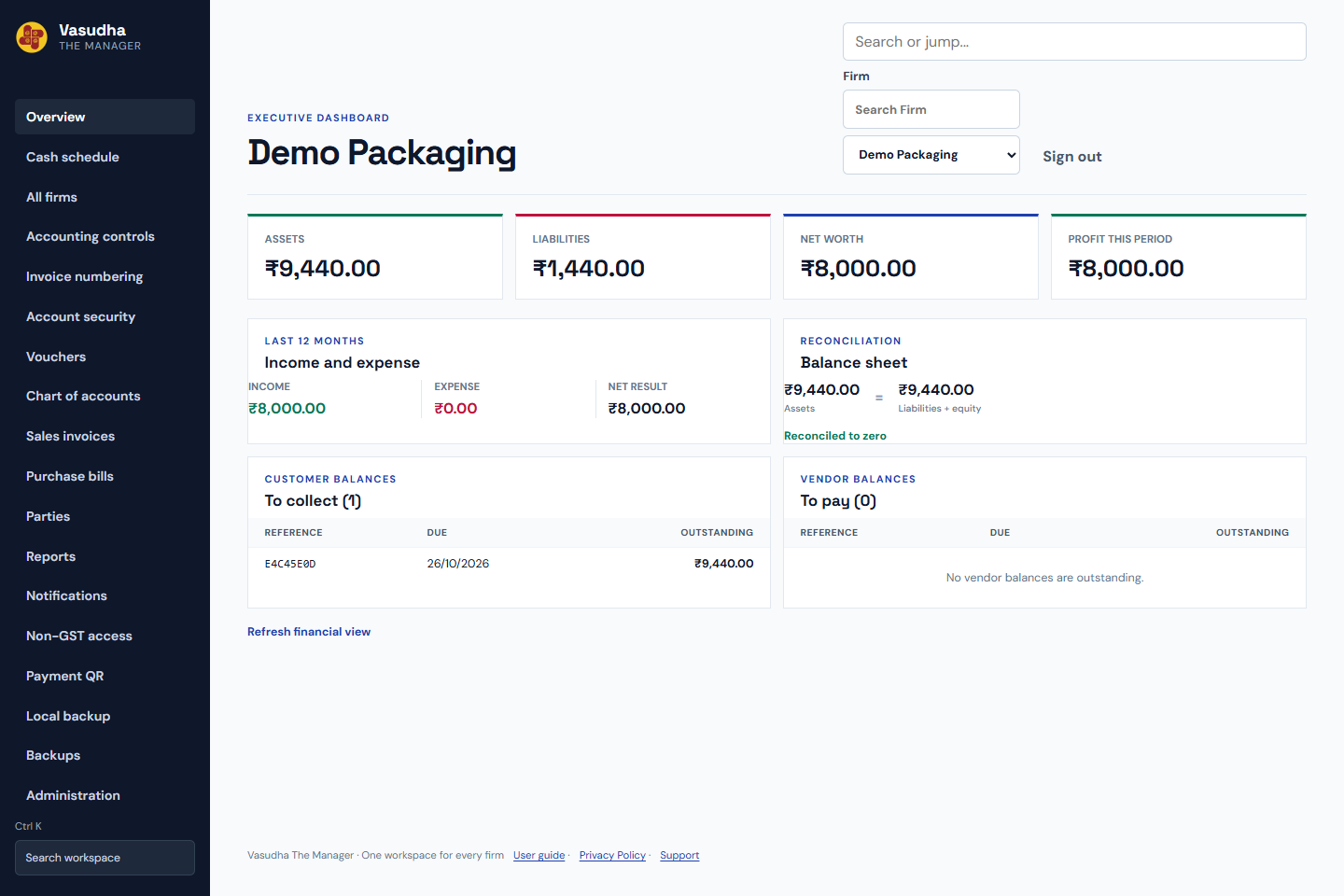 Choose a firm and read its dashboard · Fictional demo dataOpen full-size screenshot ↗
- Use the Firm selector to choose an allowed firm.
- Open Overview to see the dashboard sections enabled for your role.
- Read the selected dates and labels before comparing totals.
- Change firms explicitly before entering records for another business.
Available sections depend on the firm owner’s permissions and dashboard settings.
Open the workspace →Daily work · Authorized entry creators and approvers
Draft, approve and post a voucher
Save a balanced draft first; approval and posting are separate confirmed steps.
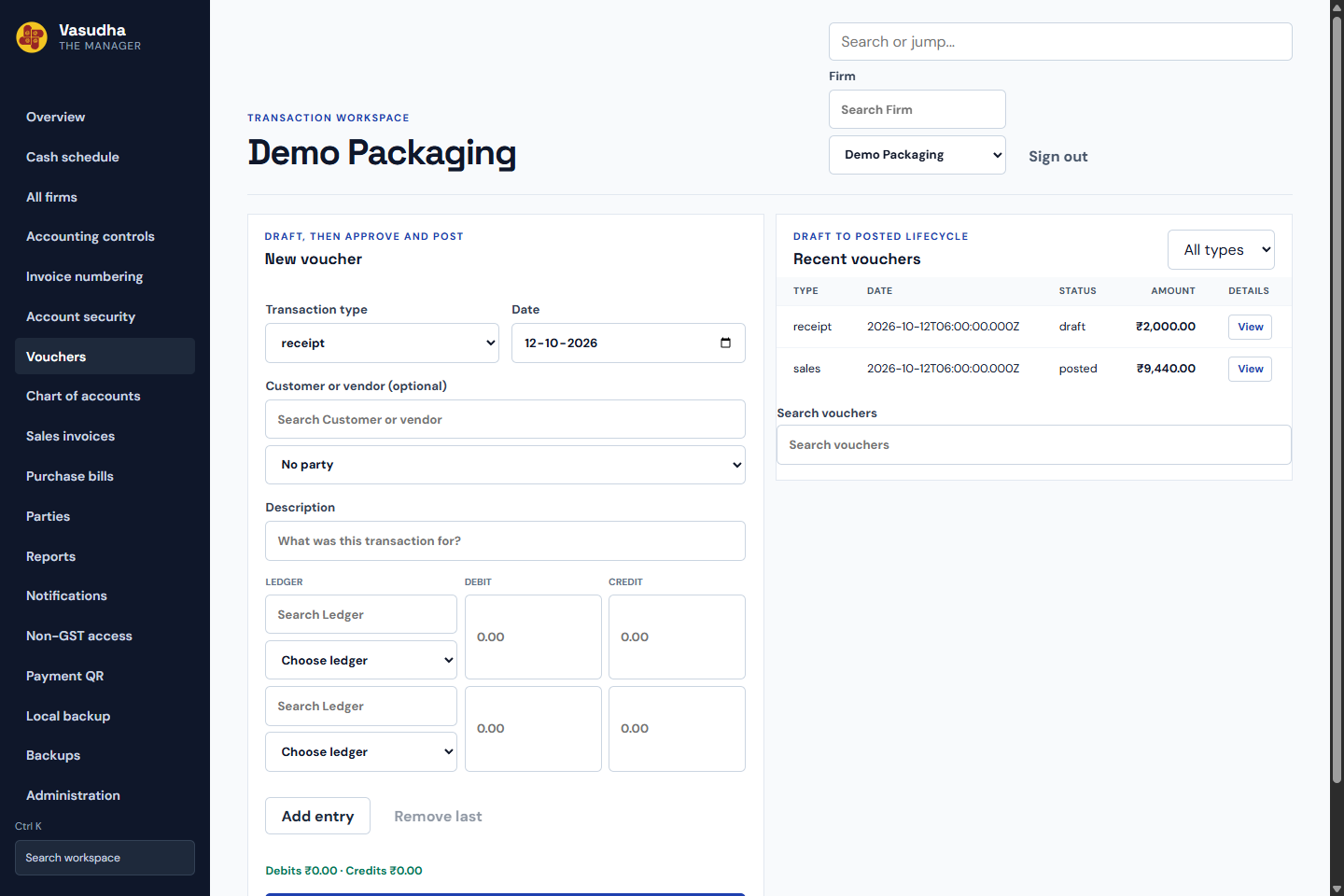 Draft, approve and post a voucher · Fictional demo dataOpen full-size screenshot ↗
- Open Vouchers and choose the transaction type and date.
- Select the correct party and ledgers, then enter debit and credit amounts.
- Save the balanced draft and review its entries.
- An authorized admin or partner approves it, then an authorized user posts it. An admin may self-approve; this is recorded in the audit history.
Posting, payments and permanent deletion wait for server confirmation. Closed months and retained financial history still apply.
Open the workspace →Daily work · Authorized invoice users
Create and export an invoice
Review item rates, quantities, taxes and the linked accounting entry.
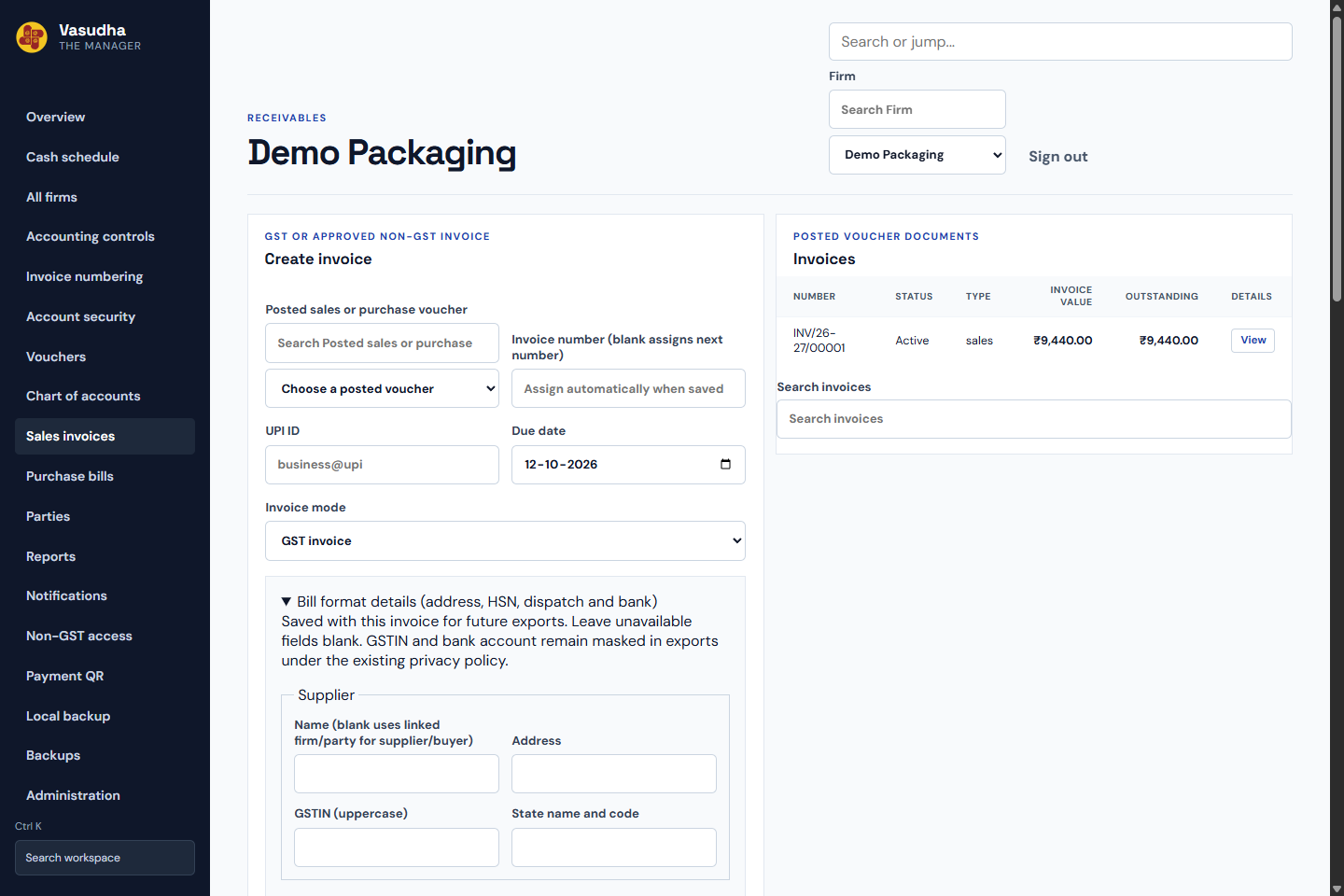 Create and export an invoice · Fictional demo dataOpen full-size screenshot ↗
- Open Sales invoices and select an eligible posted sales or purchase voucher and its customer or vendor.
- Enter item descriptions, quantities, rates and GST where applicable. Leave the invoice number blank for the next configured number.
- Review the totals, due date and bill-format details before saving.
- Open the saved invoice and request PDF, XLSX, PNG or Print. Wait for Processing to finish, then download or open the printable PDF.
Normal exports mask protected fields. The dedicated GSTR-1 workbook has its approved, permission-scoped GSTIN exception.
Open the workspace →Daily work · Authorized billing users
Read outstanding bills and record allocations
Receipts and payments reduce outstanding bills through explicit allocations.
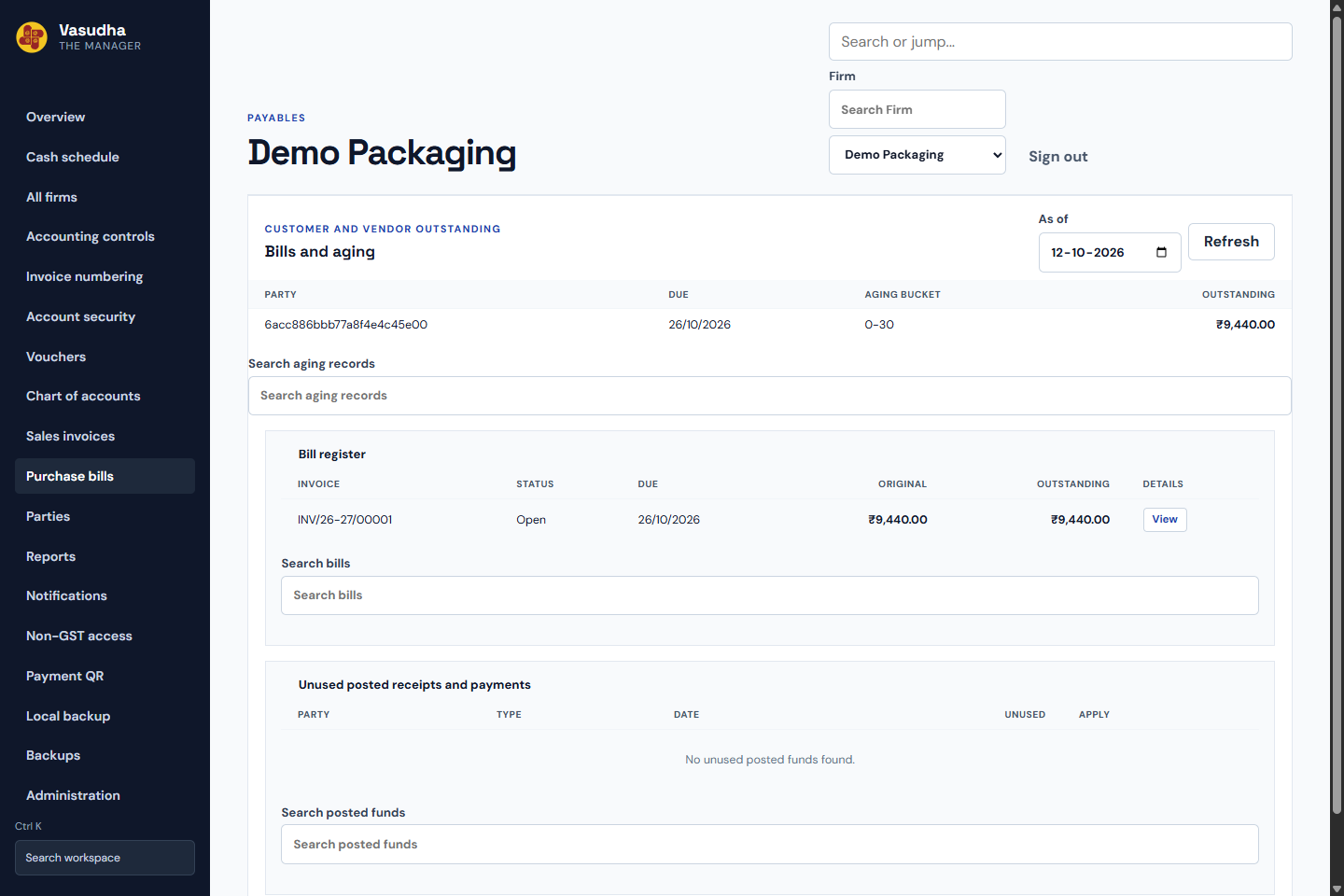 Read outstanding bills and record allocations · Fictional demo dataOpen full-size screenshot ↗
- Open Purchase bills to see the bill and collection workspace for customers and vendors.
- Review the invoice amount, due date and outstanding balance.
- Create, approve and post the correct receipt or payment voucher.
- Open the bill, select the eligible posted voucher and allocate the intended amount. Wait for confirmation.
Bank-statement matching and payment promises do not mark a bill paid.
Open the workspace →Reports · Authorized report users
Read a report and inspect its entries
Set a period, review figures and open the accounting entries behind an amount.
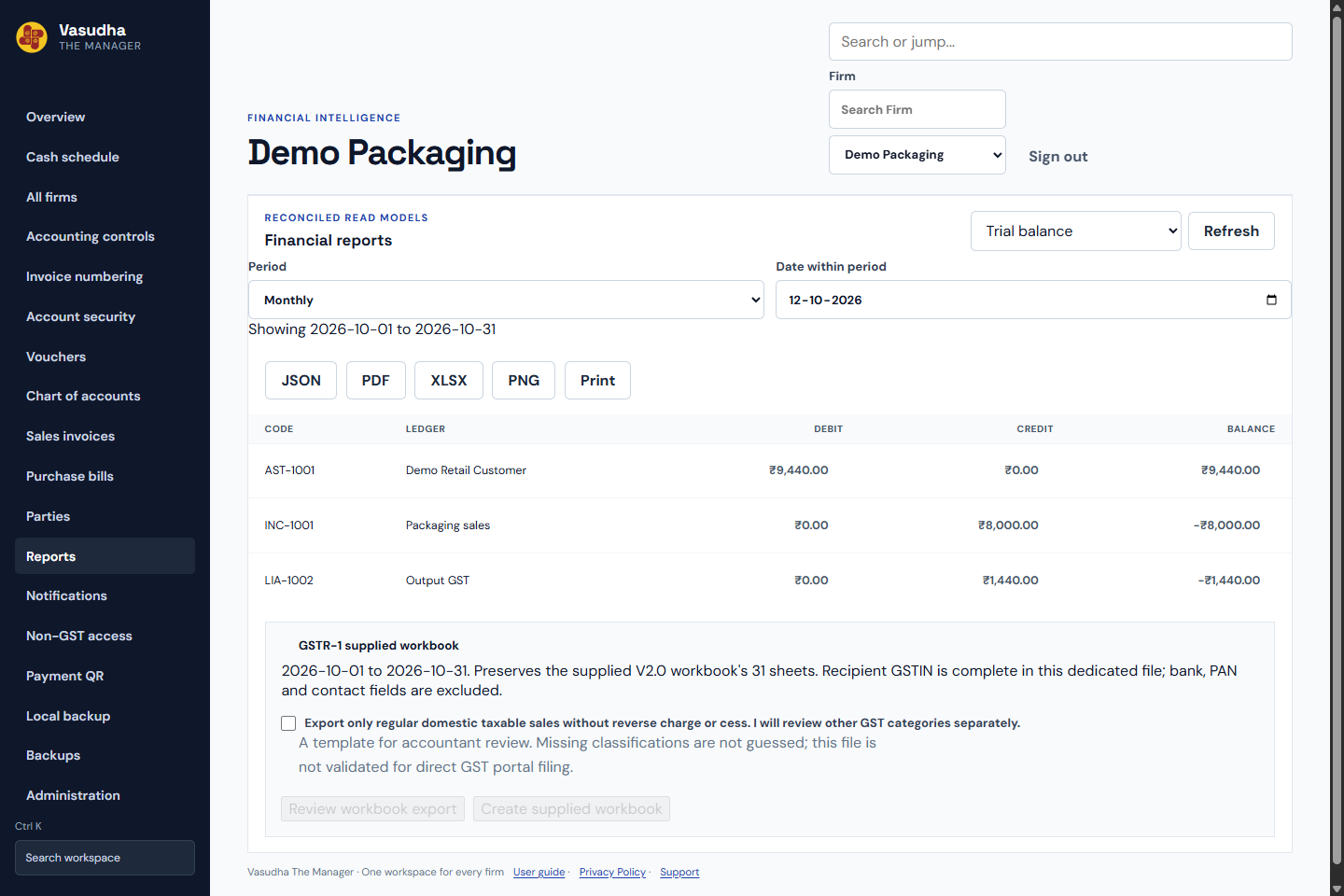 Read a report and inspect its entries · Fictional demo dataOpen full-size screenshot ↗
- Open Reports and choose Trial balance, Profit and loss or Balance sheet.
- Select the appropriate dates or financial year.
- Click an amount to inspect its contributing posted entries; Load more continues the list.
- With export permission, request an export and download it when the worker finishes.
Draft entries and records outside your permissions are not included as posted financial figures.
Open the workspace →Owner controls · Application owner with member-management permission
Invite a team member and choose permissions
Invitations remain inactive until the owner’s existing approval flow activates access.
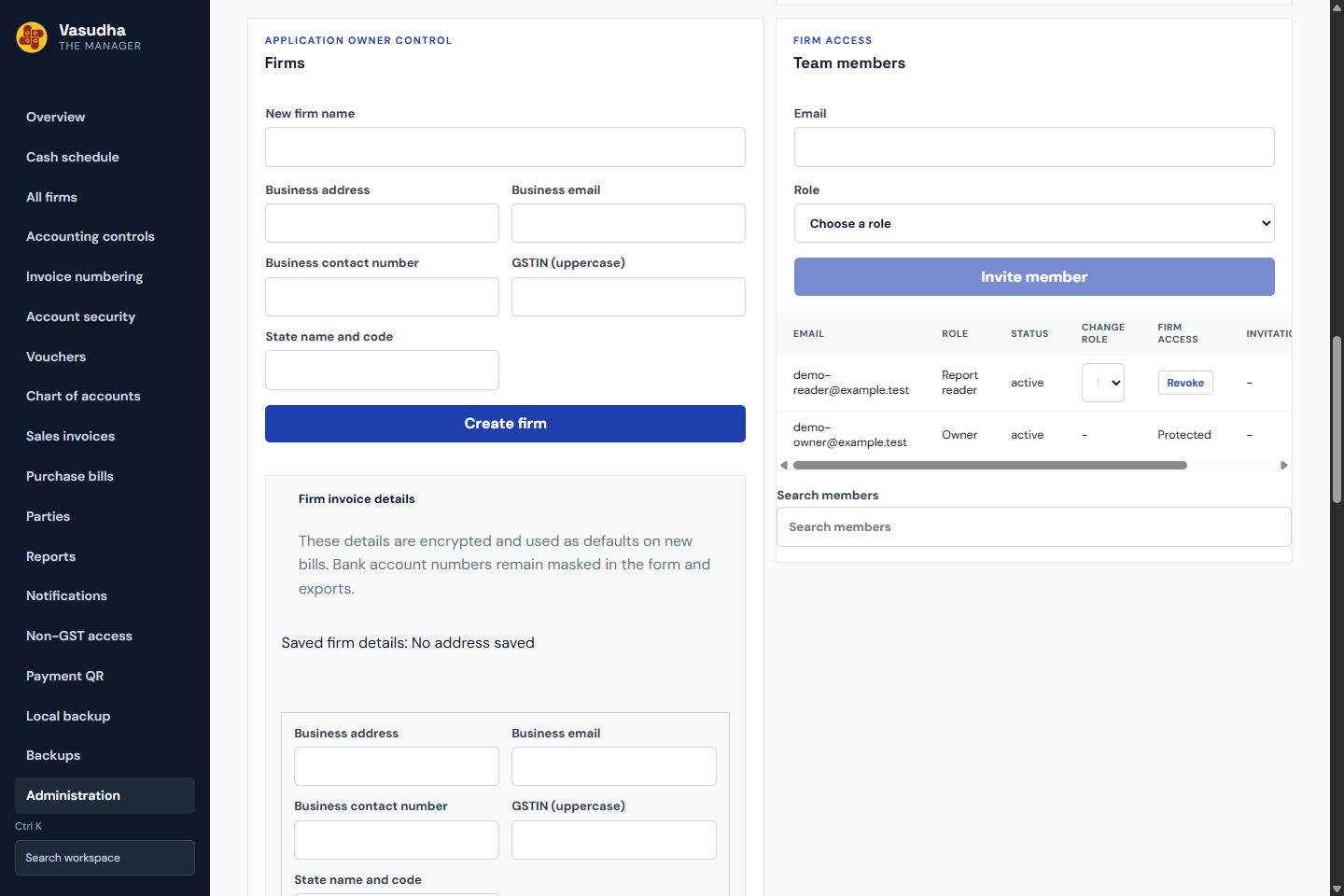 Invite a team member and choose permissions · Fictional demo dataOpen full-size screenshot ↗
- Open Administration and choose the firm.
- Create or select an assignable role with the required permissions.
- Enter the member email and invite. A pending row appears immediately; failures roll back and offer Retry save.
- Approve the member when ready, or Cancel invitation to revoke an unused invitation without erasing its history.
A role title does not grant access by itself. The owner role cannot be assigned through ordinary member management.
Open the workspace →Owner controls · Users with the required backup/import permissions
Export a backup and review an import
Keep a verified destination backup before confirming a historical-data merge.
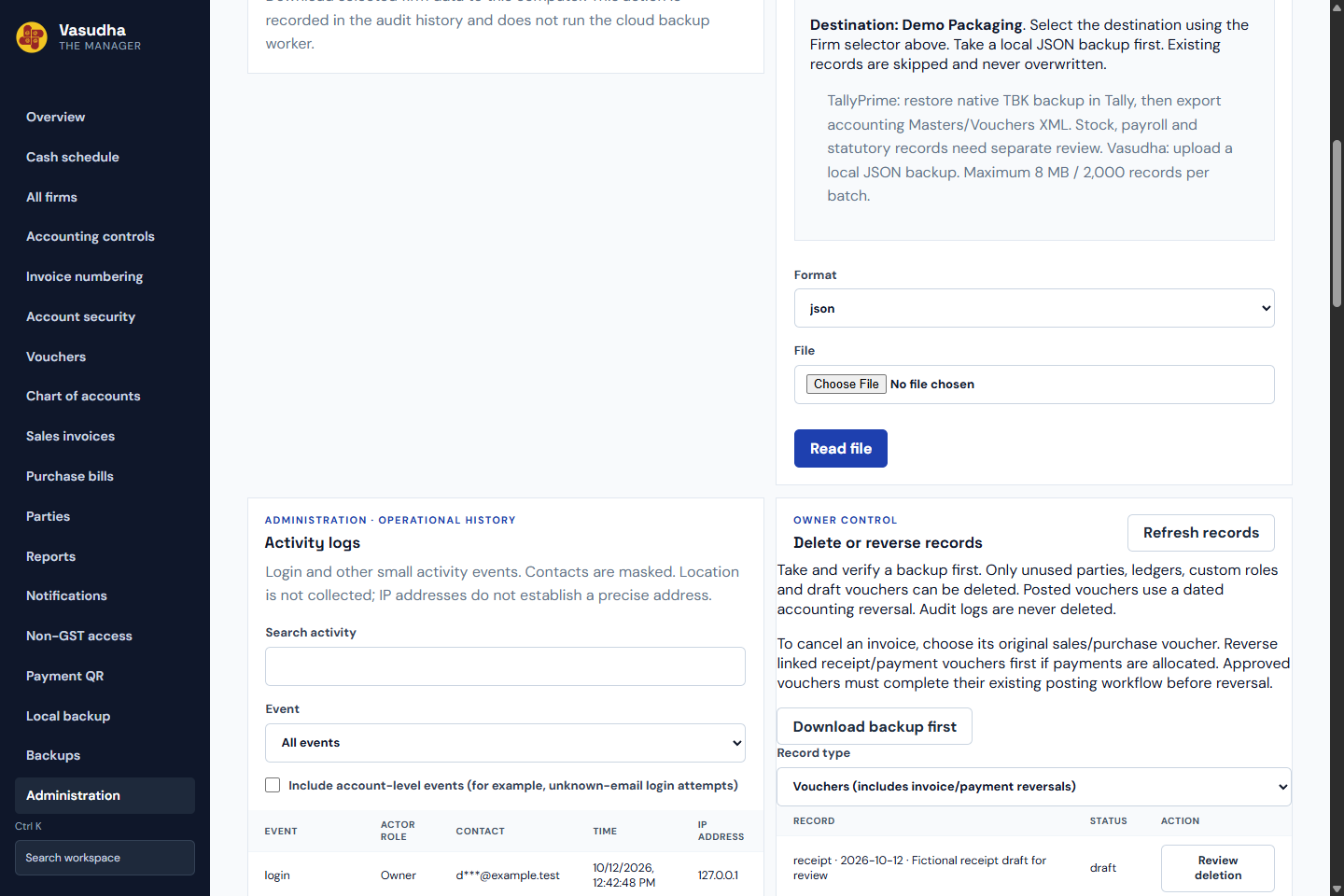 Export a backup and review an import · Fictional demo dataOpen full-size screenshot ↗
- Open Local backup, select firms and download a supported format through the owner-approved flow.
- Keep the separately required recovery keys through the approved owner procedure.
- For historical import, choose the destination firm, upload a supported file and wait for parsing.
- Review mappings, totals and duplicate skips. Acknowledge a backup and type IMPORT before confirming the merge.
Some retained adjustment and paired-transfer histories cannot yet be reconstructed by a single-firm import. Parsing never merges data automatically.
Open the workspace →Account safety · Everyone
Manage MFA and sign out other devices
Use account settings for optional authenticator MFA and session control.
- Open Account security to enable or disable authenticator MFA through the existing flow.
- If Remember this browser is offered for your account, use it only on a browser you control.
- Use Logout from all devices to revoke sessions.
- Choose whether remembered browsers should also be forgotten when using that separate option.
A remembered browser still needs your password for a fresh sign-in. Access permissions remain enforced.
Open the workspace →